Adobe Campaign Classic Operator Roles and Permissions: Access Control Explained
Set up Adobe Campaign operator permissions properly: operators, groups, named rights, folder access and a worked team design.

Permissions are the part of Campaign Classic that nobody wants to own until something goes wrong. A junior marketer deletes a production workflow, an agency user sees another brand’s customers, or every operator turns out to be an administrator because “it was easier”. Getting Adobe Campaign operator permissions right early is far cheaper than cleaning them up later.
Here I write about how the layers fit together in Campaign Classic v7 with native login, which rights carry real risk, and how I would design access for a hypothetical team with two brands and an agency.
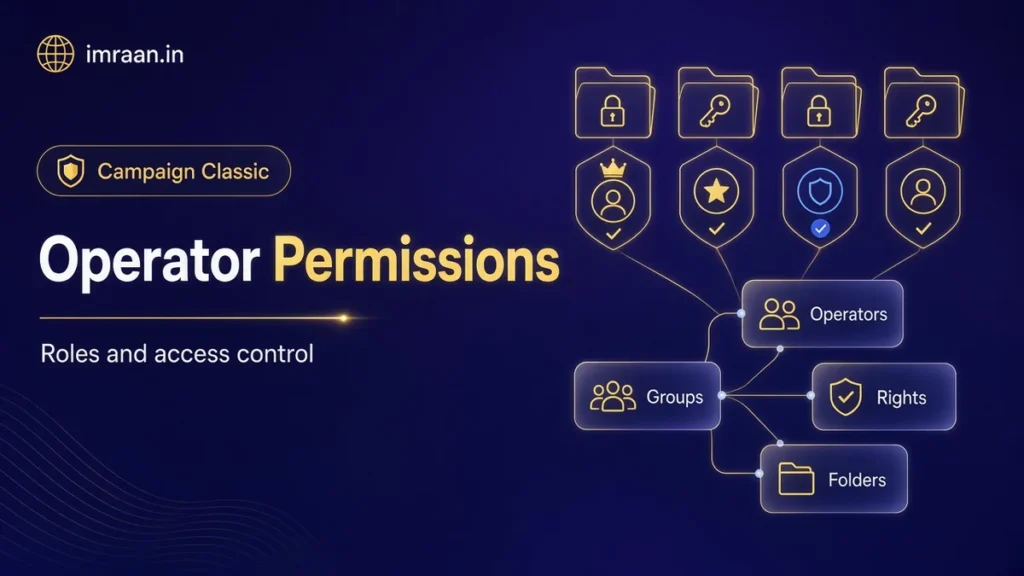
The four layers of Adobe Campaign operator permissions
Operators. An operator is a user who can log in and act. Operators live under Administration > Access management > Operators, can be created manually or mapped to an LDAP directory, and must be linked to a security zone to log on. The operators documentation describes creation.
Operator groups. Groups hold named rights and members. Assigning rights to groups rather than individuals keeps profiles consistent and makes changes easy. Groups live under Administration > Access management > Operator groups.
Named rights. A named right authorises a function, such as preparing deliveries or using workflows. Rights are assigned to groups, or directly to an operator when there is a good reason.
Folder permissions. Each folder in the explorer controls which groups or operators can read, write and delete its contents. This is where you separate brands, markets and teams.
Named rights decide what someone can do. Folder permissions, on the other hand, decide what they can do it to. In fact, most permission problems I have debugged come from looking at one layer and forgetting the other.
A practical example: a marketer with PREPARE DELIVERIES and START DELIVERIES can still be stopped from sending to the wrong audience if their group has no access to that audience’s recipient folder. Their target simply returns nobody. That is the behaviour you want, but it confuses people the first time, so I explain it in the onboarding notes for every new team.
Default operator groups and Campaign operator permissions
Campaign ships with groups that cover common roles. The operator groups documentation lists them. The ones I use most:
- Administrator: full access, with the ADMINISTRATION named right.
- Delivery operators: PREPARE DELIVERIES to create and analyse, START DELIVERIES to approve analysed deliveries.
- Campaign managers: INSERT FOLDERS and WORKFLOW, for campaign objects. However, this group does not allow starting deliveries.
- Workflow execution: the right to manage workflows not linked to campaigns.
- Workflow supervisors: receive workflow notifications and manage workflow approvals.
I rarely change the default groups. I create my own groups for each role, built from the rights the role needs, and leave the defaults as a reference. As a result, an upgrade or a package that relies on the defaults does not break my model.
Operator permissions that need the most care
Adobe’s security guidance on access management names three high-level rights:
- ADMINISTRATION: access to everything, bypassing all named right checks, including the two below.
- PROGRAM EXECUTION (createProcess): runs external programs on the server.
- SQL: runs SQL scripts on the database, which can bypass the security model.
Grant them to very few, trusted people. In my experience, an instance where most operators are administrators is an instance where nobody can say who changed what, and where any mistake can reach the whole database.
The same guidance recommends one operator per person, so audit logs are accurate, and not sharing the admin operator. I go one step further: the admin account’s password sits in a secret store, and nobody uses it day to day.
Folder-level Campaign operator permissions for brands and teams
Above all, folder permissions are what make a multi-brand instance safe. For example, each brand gets its own folders for recipients, deliveries, workflows and templates, and each brand’s group gets access only to its folders.
Design principles I follow:
- Permissions on parent folders, inherited downwards. Fewer places to check.
- Groups, not operators, on folders. When someone joins or leaves, you change group membership, not twenty folders.
- Shared folders explicitly shared. If both brands use the same templates, put them in a shared folder with read access for both and write access for the platform team only.
- Recipient folders matter most. They decide who can see personal data. Treat them like a data protection control, because they are one.
Technical operators: web apps, APIs and workflows
People are not the only operators.
The webApp operator. Out of the box it is an administrator. Adobe’s guidance recommends replacing its admin right with a dedicated named right and giving it access only to the folders web applications need, mainly recipient folders. On a multi-brand instance, then, duplicate it per brand and set each brand’s web applications to use their own account.
API operators. Similarly, every system that calls the SOAP API should have its own operator with minimum rights and a security zone that matches its servers. I cover this in my SOAP API guide.
Workflows. The workflow rights page explains that operators need the WORKFLOW named right and read rights on the workflow folder to create, start and stop workflows, plus rights on the data the activities touch. A workflow template can also have an execution account, so workflows created from it run with a defined set of rights rather than those of whoever started them. I use that for recurring imports, so a change in someone’s rights does not break a production feed.
Security zones and Adobe Campaign operator permissions
Security zones restrict where operators can connect from. Every operator must be linked to one. On-premise, they are defined in the server configuration by IP range, as I described in my v7 migration guide. On hosted instances, however, Adobe manages the configuration with you. The security zones documentation covers it.
My rule is simple: internal users in the office or VPN zone, agencies in a zone limited to their addresses, and technical accounts in zones limited to their servers. A stolen password is far less useful when it only works from one network.
Worked example: two brands and an agency
The hypothetical brief: a company runs two brands on one instance. Each brand has a marketing team that builds and sends emails. An external agency builds email content for Brand B only. A small platform team runs imports, templates and technical workflows. Today, everyone is in the Administrator group.
Folders:
- Brand A and Brand B each get folders for recipients, deliveries, workflows and templates.
- A Shared folder holds common templates and personalisation blocks.
Groups:
| Group | Named rights | Folder access |
|---|---|---|
| Platform team | ADMINISTRATION (2 people only) | All |
| Brand A senders | PREPARE DELIVERIES, START DELIVERIES, WORKFLOW | Brand A: read and write. Shared: read |
| Brand B senders | PREPARE DELIVERIES, START DELIVERIES, WORKFLOW | Brand B: read and write. Shared: read |
| Brand B agency | PREPARE DELIVERIES | Brand B deliveries: read and write. Brand B recipients: no access |
Key decisions:
- The agency can build and analyse deliveries but not start them. A Brand B sender approves and starts the send. That gives a natural review step.
- Consequently, the agency has no access to the recipient folders. They work on content and proof against seed addresses, which I cover in my post on seed addresses and proofs.
- Meanwhile, imports and technical workflows run under an execution account owned by the platform team.
- The agency’s operators sit in a security zone limited to the agency’s network.
Migration plan: create the groups and folder permissions, move one brand’s users first, check for a week that they can do their jobs, then the second brand, then remove everyone except the platform team from Administrator.
The week of checking matters. Users will find things they could do before and can’t now. Some are mistakes in the design. Most are things they should never have been able to do.
Reviewing operator permissions over time
A permission model is only as good as its last review. Teams change, agencies come and go, and temporary rights granted for a project have a habit of becoming permanent. I put a review in the calendar every quarter and keep it short enough that it actually happens.
The review covers four questions:
- Who is in the Administrator group, and why? The list should be the same two or three names as last quarter. Any new name needs a reason.
- Which operators have not logged in recently? Disable them. Re-enabling an account takes a minute. Explaining why a leaver’s account sent an email, however, takes much longer.
- Which operators have rights assigned directly rather than through groups? Each one is an exception. Either move the right into a group or remove it.
- Which folders have operators, not groups, in their permissions? Same principle.
I keep the answers in a short document next to the group design, so the next review starts from the last one. When someone asks for a new right, the request goes through the same document: what they need to do, which group already allows it, and whether a new group is justified. Usually, though, an existing group already covers the request.
Reviews also catch the slow drift towards convenience. Each individual exception looks reasonable. Twenty of them, a year later, is the “everyone is an administrator” instance again.
Mistakes I see most often with Adobe Campaign operator permissions
- Everyone in Administrator. No audit trail, no protection.
- Rights on individuals instead of groups. Impossible to review.
- Shared logins. The audit log means nothing.
- The default webApp operator left as admin.
- No review when people leave. Accounts stay active for years.
Frequently asked questions
Can I give someone delivery rights without access to customer data?
Yes. Give them delivery rights and folder access to delivery folders, but not to recipient folders. They can build content and send proofs to seed addresses, and a colleague with recipient access starts the real send.
Should operators be created manually or through LDAP?
For larger teams, however, LDAP keeps accounts in line with the company directory and helps with leavers. For small teams, manual creation is fine, but schedule a regular review.
How do I find out what an operator can actually do?
Open the operator and check both their groups’ named rights and the folders those groups can access. Adobe also publishes an access rights matrix that shows what each right allows.
Is it safe to give marketers the WORKFLOW right?
Usually yes, limited to their own workflow folders. I share the folder conventions I use in my workflow best practices post. The risk is in what workflows can do to data, so pair it with folder permissions that keep them away from shared and technical folders.
In short, permissions are easiest to get right at the start and hardest to fix after a year of everyone being an administrator. I start every implementation with the folder structure and the groups, because everything else is built inside them.
Last updated on 26 October 2026
Related articles
How to Debug Workflow Errors in Adobe Campaign Classic
How I debug Adobe Campaign workflow errors: journals, SQL logging, stuck activities, common messages and a repeatable triage…
How to Integrate Adobe Campaign Classic with External CRMs and Legacy Systems
How to integrate Adobe Campaign Classic with CRMs and legacy systems: CRM connectors, FDA, file exchange and SOAP,…
How to Integrate Adobe Campaign Classic with Adobe Experience Cloud
How I plan Adobe Campaign Experience Cloud integrations: Analytics, Target, Assets, shared audiences and Triggers, and what each…