Adobe Campaign Client Console Tour: Explorer, Campaigns, and Navigation
A practical tour of the Adobe Campaign client console: connecting, the home page, the Explorer, lists, filters and a first-day exercise.

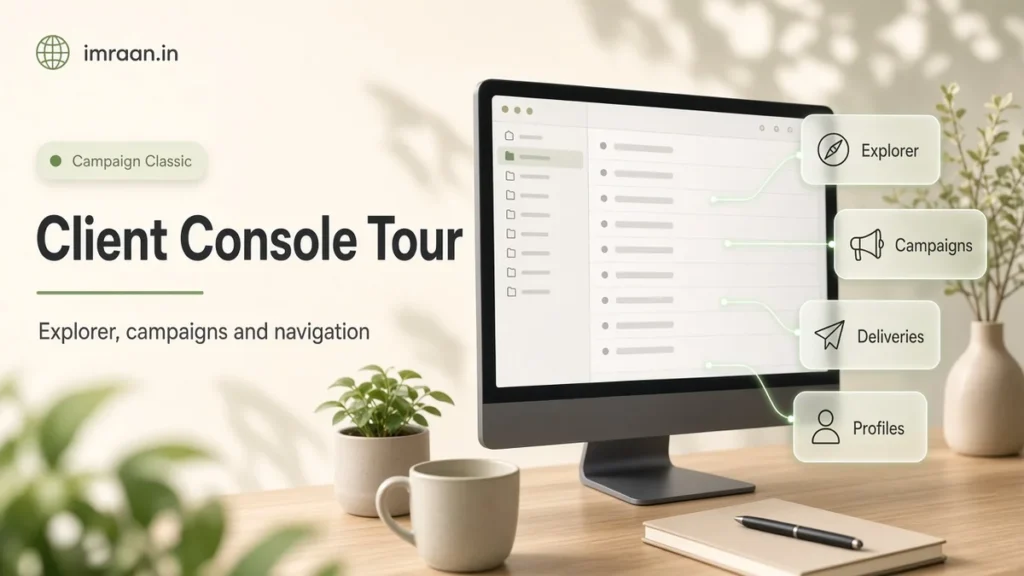
The first time most people open the Adobe Campaign client console, they see a home page, a toolbar and a lot of options. Within a week they work in perhaps a dozen screens. This tour is the one I give new team members, aimed at getting them to those dozen screens quickly and knowing where the rest lives.
Everything here is the Campaign Classic v7 Windows client console. Your instance may have extra folders or tabs if your team has added packages or customised navigation, but the structure is the same.
Installing and connecting the Adobe Campaign client console
The console is a Windows application that connects to your Campaign application server over HTTP or HTTPS. The installation page covers how to get it. On hybrid and on-premise platforms, an administrator usually places the setup file on the marketing server so users can download it from the server’s address. One rule matters more than the others: the console must run the same product version as the server, and ideally the same build. When your team or Adobe upgrades the server to a new build, the console prompts you to update.
To connect, start the console, open the connection settings above the login fields and add a connection with a label and the server URL. Then enter the login and password your administrator gave you. The launch page shows the login window and how to change your password afterwards from Tools > Change password.
If the login fails with a security error rather than a wrong password, the problem is usually that your IP address is not in a security zone the server allows. That is a question for your administrator, not something you can fix in the console.
The Adobe Campaign client console home page
After logging in, you land on the home page. It is a web page displayed inside the console, organised into tabs across the top. On a standard v7 instance you will typically see tabs such as Home, Monitoring, Profiles and Targets and Reports, plus Campaigns when the campaign module is installed.
Each tab gives shortcuts to common tasks: creating a delivery, opening the recipient list, starting a targeting workflow, viewing delivery reports. For marketers who run campaigns inside a structure someone else has built, the home page covers a large share of daily work.
The Monitoring tab is worth knowing early. It shows deliveries being processed and workflows that have recently run, which is often the fastest way to answer “did it go out?”
The Explorer in the Campaign client console
The Explorer is the folder tree that gives access to everything in the database. Open it with the Explorer button in the toolbar. On a standard instance, the top-level folders are:
- Profiles and Targets: recipients, lists, and services and subscriptions.
- Campaign Management: deliveries and targeting workflows, plus campaigns and plans if you have the campaign module.
- Resources: templates (delivery templates, workflow templates), personalisation blocks, web applications and other shared content.
- Administration: platform settings, configuration (schemas, forms, navigation), production (technical workflows, jobs), and access management (operators and groups).
Folders in the Explorer have a type. A recipient folder holds recipients, a delivery folder holds deliveries, and so on. You can create subfolders of the same type by right-clicking a folder and choosing to add a new folder, which is how most teams organise work by brand, country or team. Folders also carry permissions, which I cover in my post on operator roles and permissions.
Marketers rarely need the Administration branch. Developers and administrators live in it.
My advice to new marketers is to resist the urge to explore every branch in the first week. Learn your own folders, the recipient list and the delivery list properly, and ask before opening anything under Administration. I would also keep folder structures shallow. Three levels by brand, team and year is easy to navigate. Seven levels that mirror the org chart become a maze within a year, and nobody wants to be the one who reorganises them.
Working with lists
Click a folder and its content appears as a list on the right, with a detail pane below for the selected item. Lists are where you will spend much of your time, so these features are worth learning on day one.
Columns. The list configuration button at the bottom right of a list opens a window where you choose which fields to show, in what order, and how to sort. You can add fields from linked tables, for example a recipient’s country or the label of a delivery’s folder. Your list configuration is saved for your operator, so changing it does not affect colleagues.
Filters. Above the list, you can apply a predefined filter or build an advanced filter. The advanced filter uses the same query editor as workflows. Administrators create predefined filters under Administration > Configuration > Predefined filters, as described in the filters page, and they are a good way to give marketers safe, reusable views.
Distribution of values. Right-clicking a column in a list lets you see the distribution of its values across the filtered records. This is the quickest data quality check in the product: how many recipients per country, how many with an empty email, which delivery states are most common.
Exporting. You can export lists from the right-click menu. For anything regular or large, use a workflow instead, but for a quick check this is fine.
Opening items. Double-click an item to open it in its form. Forms are made of tabs, and each object type has its own form. Saving is explicit, so closing a form without saving discards changes.
Reading a recipient profile
Double-click a recipient and the profile form opens. The main tab shows the identity and contact fields, such as name, email, mobile, and the opt-out and blacklist flags for each channel. Other tabs show the services the person is subscribed to and the history of deliveries sent to them, with tracking where it exists.
This is the screen I use when someone asks “why did this person not get the newsletter?” Check whether they are subscribed to the service, whether they have opted out of email, and whether their address appears in the delivery history as an error. If the address is in quarantine, the answer is in the delivery logs and the quarantine list rather than on the profile itself. I explain that in my post on bounces and quarantine.
Be careful when editing profiles by hand. A change here is immediate, and the next import from your source system may overwrite it.
Deliveries in the console
Open Campaign Management > Deliveries and you will see a list of deliveries with their state, such as being edited, pending, in progress or finished. Selecting a delivery shows its summary below, with tabs for the delivery details and tracking.
Opening a delivery shows the full form: the target, the content, the properties, the proofs and the analysis. I cover the full process in my guide to sending an email delivery. For a first tour, it is enough to know that the delivery dashboard tells you whether a delivery has been analysed, approved and sent, and how many messages succeeded or failed.
Workflows in the console
Targeting workflows live under Campaign Management, and technical workflows that run the platform live under Administration > Production > Technical workflows. Opening a workflow shows the diagram editor: activities on the left, the canvas in the middle, and the toolbar for starting, pausing and stopping.
The Journal tab of a workflow logs what each activity did, and the transitions between activities show how many records passed through after a run. When something looks wrong, those two are where I look first. My workflow tutorial builds a complete example.
Campaign client console menus administrators use
A few menu items come up constantly in technical work:
- Tools > Advanced > Update database structure: applies schema changes to the database after editing a data schema.
- Export package and Import package, both under Tools > Advanced: move configuration between instances.
- Tools > Advanced > Clear local cache: clears the console’s local cache, which fixes some display problems after configuration changes.
- Help > About: shows the console and server version and build numbers. Adobe support always asks for these.
Marketers do not need these, and in most teams their operators do not have the rights to use them anyway.
A first-day exercise
Here is a hypothetical brief I would give a new marketer joining a team that runs a monthly newsletter.
“Find out how many recipients joined in the last 30 days, check which countries they are from, and confirm last month’s newsletter was sent successfully.”
Step 1: open the recipients. Open the Explorer and click Profiles and Targets > Recipients. If your team uses subfolders, start at the top folder so you see everyone you have access to.
Step 2: add the creation date column. Open the list configuration, add the Created field and sort by it in descending order.
Step 3: filter. Open the advanced filter and add a condition on the creation date, using the expression below so the filter stays correct on any day:
@created >= SubDays(GetDate(), 30)
Apply the filter. The count at the bottom of the list gives the number of records that match.
Step 4: check countries. Right-click the country column and open the distribution of values. You now have the second answer without leaving the list.
Step 5: check the newsletter. Go to Campaign Management > Deliveries, find last month’s newsletter, and check its state and the summary of processed messages, successes and errors. If you want more detail, open the delivery’s reports, for example the report on failures and bounces.
The whole exercise takes a few minutes once you know where to click, and it covers the Explorer, lists, columns, filters, distributions and the delivery dashboard. That is most of what a marketer needs in their first week.
Mistakes new users make in the Campaign client console
- Working in the wrong folder. Creating deliveries or lists in a random folder makes them hard to find and can give them the wrong permissions. Ask where your team keeps things.
- Editing standard templates directly. Duplicate a template before changing it, unless your team has agreed otherwise.
- Forgetting that lists can hide records. A list only shows what is in the selected folder and passes the active filter. If a count looks low, check both.
- Closing forms without saving. The console does not autosave.
Frequently asked questions
Is there a web version of the Adobe Campaign client console?
Some features, such as certain dashboards, reports and web applications, run in a browser. Day-to-day configuration, workflows and delivery work in v7 happen in the Windows client console.
Why do I see different folders from my colleague?
Folders carry permissions, and operators belong to groups with different rights. Two operators can open the same instance and see different trees.
Can I change the home page?
Administrators build the home page from web content they can adapt. Individual users cannot redesign it, but most of its shortcuts can also be reached from the Explorer.
Which version am I on?
Open Help > About. It shows the version and build of both the console and the server.
Once you know your way around the console, the next step is understanding the data behind it. My next post covers the Campaign Classic data model and the tables you will meet in every project.
Last updated on 26 October 2026
Related articles
Adobe Campaign Classic Operator Roles and Permissions: Access Control Explained
Set up Adobe Campaign operator permissions properly: operators, groups, named rights, folder access and a worked team design.
How to Debug Workflow Errors in Adobe Campaign Classic
How I debug Adobe Campaign workflow errors: journals, SQL logging, stuck activities, common messages and a repeatable triage…
How to Integrate Adobe Campaign Classic with External CRMs and Legacy Systems
How to integrate Adobe Campaign Classic with CRMs and legacy systems: CRM connectors, FDA, file exchange and SOAP,…