How to Send an Email Delivery in Adobe Campaign Classic: Targeting, Content, and Execution
Send an Adobe Campaign email delivery end to end: target, content, personalisation, proofs, analysis, scheduling and monitoring.

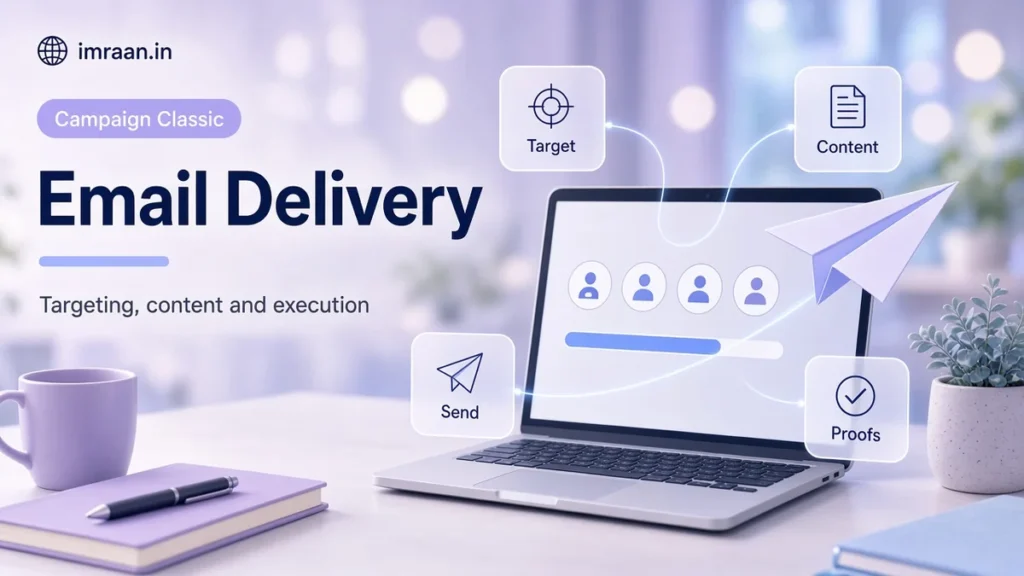
Sending an Adobe Campaign email delivery is the task every Campaign Classic user learns first, and the one where small shortcuts cause the biggest public mistakes. An email that goes to the wrong segment or with a broken greeting cannot be recalled.
I’ll walk through the full process the way I run it: template, target, content, proofs, analysis, sending and monitoring. The screens described are Campaign Classic v7 on the client console. I use one hypothetical brief throughout, so every step has a concrete decision attached to it.
The brief
A travel company wants to email customers who booked a trip in the last two years and have opted in to marketing, announcing a winter sale. The email should greet people by first name, show their home airport where known, and link to the sale page. It goes out on Tuesday morning.
That gives us a target with conditions, personalisation with a fallback, a scheduled send and tracked links. Most real sends are a variation of this.
Step 1: create the Adobe Campaign email delivery from a template
Go to Campaign management > Deliveries and click Create. The first thing Campaign asks for is the delivery template. Choose the brand’s email template rather than the standard one or, worse, a duplicate of last month’s email. A good template already sets routing, sender, typology, validity and the proof target, which I covered in my post on delivery templates.
Give the delivery a label that tells someone looking at the list next year what it was, such as “Winter sale announcement, opted-in bookers”. Labels are what you search by.
Step 2: define the target of the Adobe Campaign email delivery
Click the To link to open the target definition. On the Main target tab, the target is normally defined in the database, with a target mapping on recipients. Then click Add to build the conditions in the query editor.
For our brief, the conditions are:
- The recipient has a booking in the last two years. If bookings are a custom table linked to recipients, this is a condition on the collection link: “exists a booking where booking date is after today minus two years”.
- The recipient has not opted out of marketing email, which on the standard model is the “No longer contact by email” field.
I explain collection conditions and the data model they depend on in my query activity post.
Then check the Exclusions tab. The standard options exclude duplicate addresses, recipients who asked not to be contacted and quarantined addresses. Leave those on unless you have a specific reason. If you remove the duplicate address exclusion, a family sharing one address receives several copies.
The Control group tab, if you use it, holds back a random part of the target so you can measure the effect of the email. For a sale like this, I usually recommend a small control group if the business wants to know whether the email drove bookings.
Step 3: build the content
The content has four parts: sender, subject, HTML and text.
Sender and reply-to. These come from the template. Check them anyway.
Subject. Write it, and consider personalisation, but keep it working for everyone. A subject that starts with a first name looks odd for recipients without one.
HTML content. Paste or build the HTML. Personalisation fields use <%= %> against the target schema. For the home airport, which is optional in our data, I use a condition:
<p>Hello <%= recipient.firstName || "there" %>,</p>
<% if (recipient.homeAirport) { %>
  <p>We've found winter deals from <%= recipient.homeAirport %>.</p>
<% } else { %>
  <p>We've found winter deals from airports near you.</p>
<% } %>
<p><a href="https://www.example.com/winter-sale">See the sale</a></p>
<%@ include view='footerLegalBrandA' %>
The homeAirport field is a hypothetical custom field on the recipient extension. Use the field names from your own schema.
Text content. Write a text version. Some clients display it, and a missing text version is a common spam signal. Campaign can generate it from the HTML, but I always read it before sending.
Preview. The Preview tab renders the email for a chosen test recipient. Preview with at least three: one with all fields, one without a first name and one without a home airport. This catches most personalisation bugs before a proof.
Step 4: send proofs
Proofs are real emails sent to a proof target, usually a seed list, with the content as recipients will see it. Click Send, choose Send a proof, and the analysis runs for the proof target.
I send proofs to the brand team, to a couple of inbox test accounts on different providers and to myself. The questions I want answered:
- Do the links go to the right pages, with tracking?
- Does it render on mobile?
- Is the subject what was approved?
- Does the unsubscribe link work?
Every round of changes gets a new proof. Campaign numbers proofs, which helps when someone says “proof 2 was fine”.
Step 5: analyse the Adobe Campaign email delivery
When the proofs are approved, click Send and choose to deliver to the main target. Campaign runs the analysis first. Analysis is where Campaign calculates the target, applies exclusions and typology rules, and personalises every message.
Read the analysis log. Three things I always check:
- Target size. Compare the count to what you expected. If the brief said “about 200,000 bookers” and the analysis says 2,000, stop.
- Exclusions. The log lists how many recipients were excluded and why: quarantine, duplicates, typology rules. A sudden jump in one category often points to a data problem.
- Warnings and errors. Typology control rules flag issues such as a missing unsubscribe link. Do not ignore warnings because the send still works.
If the analysis shows a problem, fix it and analyse again. Analysis is cheap. Re-sending is not possible.
Step 6: schedule and confirm the send
Once the analysis is right, you confirm the delivery. For our Tuesday morning send, set the scheduling in the delivery so the contact date is Tuesday at the agreed hour, then confirm. The delivery waits until that time.
Be clear about the difference between preparing and sending. If the analysis happens on Friday for a Tuesday send, changes to recipient data over the weekend are not reflected unless you re-analyse. For data-sensitive sends, I analyse close to the sending time.
If the delivery needs approval, the approvers receive a notification and the delivery waits for them. Approvals are worth setting up for any team with more than a couple of people sending.
Step 7: monitor the Campaign email delivery
When the delivery starts, the dashboard shows its progress. The Delivery tab lists the sending logs per recipient, with the status of each message. The tracking information fills in as people open and click.
The first hour is when I watch most closely. If the delivery stays in the Pending state, the delivery monitoring documentation notes that on on-premise installations the MTA may not be started, or the delivery may use an affinity that isn’t configured. On hosted instances, raise it with support.
Failed messages are retried for temporary errors according to the delivery’s retry settings and validity period, as described in the sending settings documentation. Permanent errors such as unknown users lead to quarantine. I cover how that works in my post on deliverability, bounces and quarantine.
Reading the results
After a day or two, the delivery reports show delivery, opens, clicks and unsubscribes. I look at three things for a send like this:
- Delivered against target. A large gap means bounces or quarantines, which is a list quality issue.
- Clicks on the sale link compared to previous sales emails.
- Unsubscribes, as a signal of fatigue or poor targeting.
If you used a control group, compare bookings between the group that received the email and the group that did not. That is the only honest measure of what the email did. Opens are increasingly unreliable as a measure of attention, so I treat clicks and conversions as the numbers that count.
The email channel documentation lists the related topics, such as the mirror page and BCC, if your brief needs them.
Running the same Campaign email delivery from a workflow
The brief is a one-off, but the travel company will want a version of it every season. That is the point where I move the email delivery into a workflow.
The structure is simple: a Query activity with the same conditions, an Exclusion or Split if some segments need different content, and a Delivery activity created from the brand template with the recipients “specified by the inbound transition”. The delivery activity can be set to prepare the delivery and wait for confirmation, so a person still checks the analysis and approves before anything goes out. I walk through building that structure in my workflow tutorial.
Two habits help. First, keep the targeting in the workflow and the content in the delivery, so a content change never needs someone to touch the query. Second, check the count on the transition into the delivery activity before confirming, in the same way you check the analysis count on a manual send.
The advantage over a manual delivery is that next season, the targeting is already tested. Only the dates and the content change. Adobe’s deliverability overview is worth reading before you scale up sends like this, because volume changes how mailbox providers treat you.
Mistakes I see on Adobe Campaign email sends
- Duplicating an old delivery. Old content, links and sometimes targeting come with it.
- Skipping preview for edge cases. One recipient with every field filled in proves nothing.
- Ignoring the analysis count. The count is the last chance to catch a wrong target.
- Analysing days before sending. The target is frozen at analysis.
- Sending without a text version.
Frequently asked questions
Can I stop a Campaign email delivery once it has started?
Yes, you can stop or pause a delivery from the console, and messages not yet sent are not sent. Messages already sent cannot be recalled, which is why the analysis count matters so much.
Should I send email deliveries from workflows or by hand?
Recurring sends belong in workflows, so targeting is repeatable and audited. One-off sends like a sale announcement can go either way. I often still build them in a workflow, because the targeting is visible and easy to reuse.
How many proofs should I send?
As many as there are rounds of changes. One per change, to the same proof list, so everyone reviews the same version.
Why does my target count differ from my query count?
The analysis applies exclusions and typology rules that a plain query does not. Duplicate addresses, quarantines and opt-outs are removed at this point.
A careful send takes a little longer than a careless one, but nothing on this list is slow once it becomes habit. My next post covers typology rules, which control the checks applied during analysis and how often people can be contacted.
Last updated on 26 October 2026
Related articles
Adobe Campaign Classic Operator Roles and Permissions: Access Control Explained
Set up Adobe Campaign operator permissions properly: operators, groups, named rights, folder access and a worked team design.
How to Debug Workflow Errors in Adobe Campaign Classic
How I debug Adobe Campaign workflow errors: journals, SQL logging, stuck activities, common messages and a repeatable triage…
How to Integrate Adobe Campaign Classic with External CRMs and Legacy Systems
How to integrate Adobe Campaign Classic with CRMs and legacy systems: CRM connectors, FDA, file exchange and SOAP,…