How to Import Recipient Data in Adobe Campaign Classic: CSV, Data Loading, and Deduplication
How I import recipient data into Adobe Campaign Classic: file format, data loading, reconciliation, deduplication, updates and reject handling.

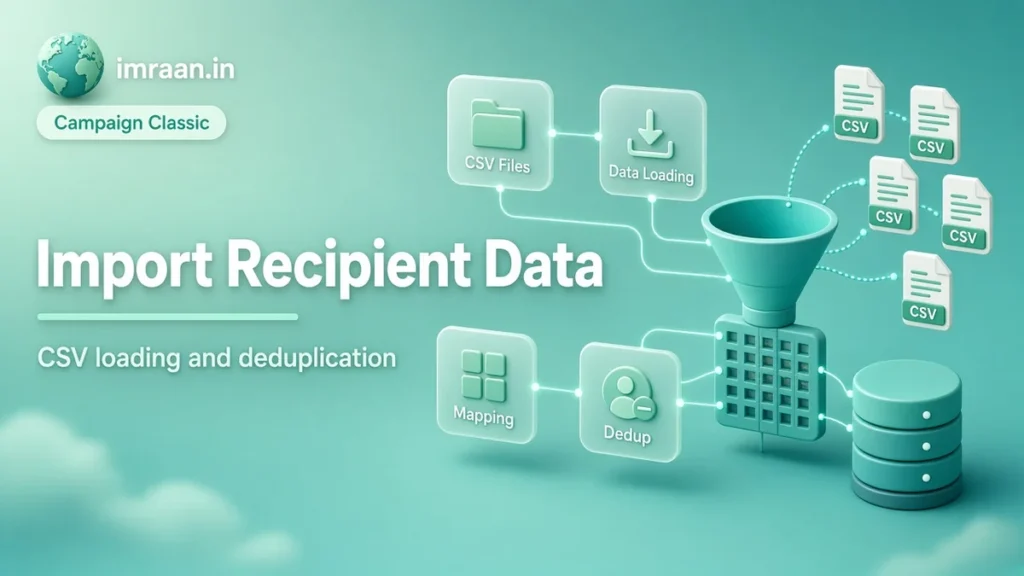
Most Adobe Campaign Classic instances live or die by how they import recipient data. If profiles arrive clean and reconciled, everything downstream works. If they arrive with duplicates, inconsistent emails and missing keys, every campaign inherits the mess. I have spent more time fixing bad imports than building new ones, so what follows is how I get it right the first time.
I focus on file imports into nms:recipient with workflows, which covers most projects. The same pattern applies to custom tables.
The pattern to import recipient data
Adobe’s import best practices describe the activities most import workflows should contain: load the file, reconcile, segment, deduplicate and update. In workflow terms, I build:
- A File collector or File transfer activity to pick up the file.
- A Data loading (file) activity to read it.
- An Enrichment activity to reconcile rows with existing recipients.
- A Split activity to separate known recipients, new recipients and rejects.
- Update data for known recipients.
- Deduplication and then Update data (insert) for new recipients.
- Data extraction (file) for rejects, so someone can fix them at source.
The recurring import workflow example in Adobe’s documentation follows the same structure and builds it as a template, which is how I recommend doing it.
Agree the file before you import recipient data
Before touching the console, agree the file with whoever produces it. Flat files are the most efficient format, and the documentation recommends tab or semicolon separators, a header line, no string delimiter and an explicit date format. I add three rules of my own:
- One stable key per person. Usually the CRM ID. Email is not a key, because people change it.
- Delta, not full. Send only new and changed records. Full loads are for the initial migration only.
- A predictable file name. Something like
crm_recipients_20180721.csv, so a filter can pick it up and the history is readable.
The recipient schema needs a field for the key. If you do not have one, extend nms:recipient with a crmId field and an index on it, as I show in my custom schema guide.
Normalise before you load
The best practices page makes a point that is easy to skip: imported data must be normalised, and the normalisation must stay the same over time. If the CRM sends Anna.K@Example.com today and anna.k@example.com next month, and nothing lowercases both, you will end up with matching problems and duplicates.
I agree normalisation rules with the source team and enforce them in the data loading format as well:
- Email in lower case, with spaces trimmed.
- Phone numbers in one international format.
- Country as a two-letter ISO code, matching the country reference table.
- Dates in one agreed format.
Where the source cannot normalise, the data loading activity can handle case and spaces, and a Mapping on a column can translate known variants, for example mapping UK to GB.
Testing a recipient data import safely
I never run a new import for the first time on production data. My test routine:
- Build the workflow on a development instance from the template.
- Prepare a small test file that covers each case: a known recipient with a change, a new recipient, a duplicate new recipient, a row with no email, a row with a bad date.
- Run the workflow and check the count on every transition.
- Open the known recipient and confirm only the expected fields changed.
- Confirm the duplicate produced one new record, not two.
- Open the rejects file and check every bad row is there with its reason.
Then I run the same file a second time. Nothing should change, because records are only updated when values differ. If the second run creates new recipients, the reconciliation is wrong.
Collecting the file
The File collector watches a directory on the server and starts the rest of the workflow when a matching file arrives. The file collector documentation lists the options. The ones I always set:
- Directory and Filter, for example
crm_recipients_*.csv. - Stop as soon as a file has been processed, so one file is handled per run. File processing order is otherwise not guaranteed.
- Process file nonexistence, which adds a transition when no file is found, so a missing file can raise an alert rather than going unnoticed.
- Processing errors, which adds a transition for file system errors instead of putting the workflow into error.
The collected file name is passed to the next activity in the transition, and the file is moved to the historization directory.
If the file is on an SFTP server rather than the Campaign server, use File transfer instead, scheduled with a Scheduler activity.
Loading the recipient data file
In Data loading (file), load a sample file with the same structure, then choose Click here to change the file format to check every column. The data loading documentation explains every option. These are the settings that make the most difference:
- Data type and length for each column. Do not leave everything as text.
- Format for dates, matching what the source system actually sends.
- Data transformation. Lower case for email is a sensible default.
- White space management, set to ignore leading and trailing spaces.
- Error processings. For a key column, I use Reject line. For an optional column, Ignore the value is usually fine.
Set Name of the file to load to Specified in the transition so the activity reads whatever the collector found. Compressed files can be handled with a pre-processing command, so you do not need to unzip them on the server first.
Lines rejected by these format rules are reported in the workflow log. Rows that load correctly but fail business rules, such as a missing email, are handled later in the split, where they can be written to a file.
Reconciling recipient data with existing records
The Enrichment activity links each row in the file to an existing recipient. Add data, choose a link to the Recipients dimension, and define the join on the key: the file’s crmId column equal to the recipient’s @crmId. Rows that match get the recipient’s ID. Rows that do not match get an ID of 0.
That 0 is the signal the next activity uses.
Splitting known, new and rejects
In the Split activity, filter on the additional data and create two subsets:
- Known: the linked recipient’s ID is not 0.
- New: the linked ID is 0, and email, first name and last name are all filled.
Subsets are processed in order, so the second only sees rows not already taken by the first. Enable Generate complement to catch everything else, which is usually rows with a missing email or name.
Updating known recipient data
The first Update data activity uses the Update operation type, identified with reconciliation keys against the link created in the enrichment. The update data documentation describes the options. I map only the fields the source system owns, such as name, email, country and opt-in flags, and leave Campaign-owned fields such as blacklist flags alone unless the source is the system of record for consent.
Two behaviours to know. Records are only updated when at least one value has changed. And the Empty the destination value if the source value is empty option is on by default under advanced parameters, so an empty column in the file will clear the field. If your source sends empty values to mean “no change”, switch it off.
Inserting new recipients
New rows go through Deduplication first, because the same new person can appear twice in one file. Deduplicate on email, keep one record, and in the advanced parameters disable the automatic filtering of 0 ID records. Otherwise, the activity drops every row, because all new rows have an ID of 0. My deduplication post goes into the methods.
Then a second Update data with the Insert operation type, identified directly by the Recipients dimension, mapping the same fields plus the CRM ID. Make sure new records land in the right recipient folder, because folder permissions decide who can see them.
Handling rejects
The complement from the split goes to Data extraction (file), which writes the rejected rows with a reason column to a file, and then to File transfer to send it back to the source team. A file of rejects that someone reads is worth far more than a log line nobody does.
Worked example: a nightly CRM import
Here is a hypothetical brief. A subscription business sends a semicolon-separated delta file from its CRM every night to a directory on the Campaign server. The columns are crmId, email, firstName, lastName, countryCode and optInEmail. They want new customers created, existing customers updated and bad rows reported.
The file sample:
crmId;email;firstName;lastName;countryCode;optInEmail
C10045;anna.k@example.com;Anna;Kowalski;PL;1
C10046;;Mark;Ellis;GB;1
C10047;sam.ruiz@example.com;Sam;Ruiz;ES;0
The workflow, built from a template under Resources > Templates > Workflow templates:
File collector (crm_recipients_*.csv, schedule nightly)
  -> Data loading (file) (file specified in the transition)
  -> Enrichment (link to Recipients on crmId)
  -> Split
       Known   -> Update data (Update)
       New     -> Deduplication (email) -> Update data (Insert)
       Complement -> Data extraction (file) -> File transfer (rejects)
  File collector "no file" transition -> Alert to the CRM team
In this sample, C10046 has no email, so it falls into the complement and appears in the rejects file. The other two either update existing recipients or are created.
One more check I add is a Test activity right after the data loading, so an empty file stops the workflow cleanly instead of running every branch with nothing:
vars.recCount > 0
The true branch continues to the enrichment. The false branch goes to an alert.
Pitfalls I see most when teams import recipient data
- Reconciling on email. It creates duplicates as soon as someone changes their address. Use a stable key.
- Forgetting the 0 ID option in Deduplication. All new rows disappear and nobody notices until a campaign is short.
- Clearing fields with empty values. Check the empty-source option before the first run on production.
- No alert for a missing file. The workflow just waits, and nobody knows the CRM stopped sending.
FAQ
Can I use the import wizard instead of a workflow?
For one-off loads, the generic import in the console is fine. For anything recurring, use a workflow, because you can schedule, monitor, alert and reuse it as a template.
How large can a recipient data file be?
The documentation notes a 150MB maximum for files loaded with the client console. In practice, regular imports should be deltas and stay well below that. For an initial load of a large base, I split the file and load it in several runs.
Should the import update the blacklist flags?
Only if the source system is the master for consent. If unsubscribes happen in Campaign, an import that overwrites the flag will resubscribe people, which is a serious problem.
How do I know what changed in each run?
Check the counts on each transition after the run, and the workflow journal. For an audit trail, extract the known and new branches to a dated file before updating.
Once profiles are loading cleanly, the next step is using them. My workflow tutorial builds a targeting workflow on top of data like this.
Last updated on 26 October 2026
Related articles
Adobe Campaign Classic Operator Roles and Permissions: Access Control Explained
Set up Adobe Campaign operator permissions properly: operators, groups, named rights, folder access and a worked team design.
How to Debug Workflow Errors in Adobe Campaign Classic
How I debug Adobe Campaign workflow errors: journals, SQL logging, stuck activities, common messages and a repeatable triage…
How to Integrate Adobe Campaign Classic with External CRMs and Legacy Systems
How to integrate Adobe Campaign Classic with CRMs and legacy systems: CRM connectors, FDA, file exchange and SOAP,…