How to Create a Custom Schema in Adobe Campaign Classic (With Examples)
Create an Adobe Campaign custom schema step by step: keys, links to recipients, indexes, integrity options and updating the database structure.

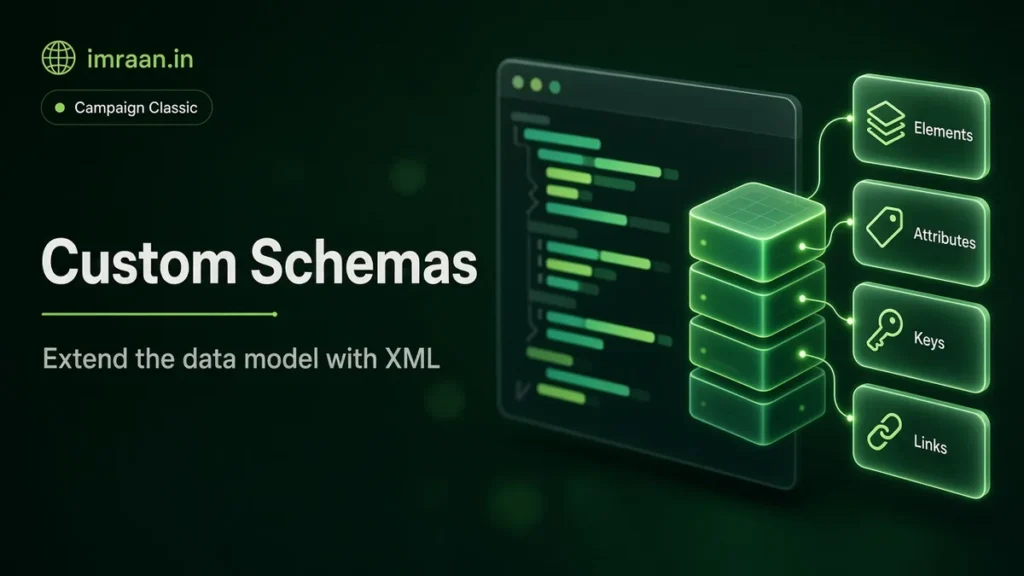
Sooner or later every Campaign Classic project needs data that the built-in tables do not cover. Purchases, loyalty points, store visits, contracts, policy renewals. You can push some of it into extra fields on the recipient, but anything that happens many times per person needs its own table. In Adobe Campaign that means a custom schema.
I have built a lot of these on v6 and v7 instances, and the process is always the same: write the source schema, let Campaign generate the real schema, update the database, then prove the table works from a query and a script before marketers touch it. I’ll walk through that process with one realistic example from start to finish.
Extend a built-in schema or create an Adobe Campaign custom schema?
There are two different jobs that people both call “custom schema”.
The first is extending an existing schema, for example adding a loyalty tier or a preferred store to nms:recipient. You create a schema in your own namespace with the extendedSchema attribute, and Campaign merges your fields into the original at generation time. Adobe is clear that you should extend rather than edit built-in schemas, because edited factory schemas are not updated properly when you upgrade the build. The schema extension documentation shows the pattern.
The second is creating a new table. If one recipient can have many records of something, it belongs in a separate table linked back to the recipient. Putting “last purchase date” on the recipient is fine. Putting every purchase on it is not.
A quick test I use: if you can answer the question with one value per person, extend the recipient. If you need a list, build a new schema with a link. My post on the Campaign Classic data model shows how the built-in tables already follow this rule.
I push back when a team wants to skip the table and add a dozen “last purchase” style fields to the recipient instead. It is quicker on day one, but every new question needs another field, another import change and another database update. A transaction table answers questions nobody has asked yet. The cost is that marketers have to learn exists conditions, and I think that is a price worth paying once.
How a custom schema works in Adobe Campaign Classic v7
Each schema exists in two forms:
- The source schema (
xtk:srcSchema) is the XML you write and edit under Administration > Configuration > Data schemas. - The generated schema (
xtk:schema) is what Campaign compiles from the source. It contains the SQL names, the generated keys and indexes, and any fields merged in from extensions. You never edit it by hand.
When you save a source schema, Campaign regenerates the matching schema. That change only describes the table, though. Nothing happens in the database until you run the update wizard, which I cover below.
Every schema has a namespace and a name. Use your own namespace (cus is the convention in most projects, but a short client code works too) and never create objects in nms or xtk. Those belong to Adobe and get overwritten by upgrades.
Naming conventions and column prefixes
Campaign derives SQL names from the schema unless you override them. The table name defaults to the namespace with a capital first letter plus the element name, so cus:transaction becomes CusTransaction. Column names get a one-letter prefix based on the field type, followed by the field name with its first letter capitalised. The database mapping page covers the full rules.
| Field type | Prefix | Example column |
|---|---|---|
| long, short, byte, boolean | i | iTransactionId |
| double, float | d | dAmount |
| string | s | sStoreCode |
| date, datetime | ts | tsTransactionDate |
| memo | m | mComment |
Two attributes override the defaults when you need to map to something specific. sqltable on the root element sets the table name, and sqlname on an attribute sets the column name. I only use them when I map a schema onto a table that already exists, or when a database naming standard forces it. Otherwise let Campaign generate the names so everyone on the project can predict them.
The prefixes matter more than they look. When you write raw SQL in a workflow, you are working with the SQL names, not the XML names. A field called transactionDate in your schema is tsTransactionDate in the table. Mixing those up is one of the most common reasons an SQL code activity fails on its first run.
The worked example: an Adobe Campaign custom schema for purchases
Here is the brief for the rest of the post. A retailer sends their store and web sales to Campaign every night as a flat file. Each line has a unique transaction code, the customer email, the date and time of the sale, the amount, the product category, the store code and the channel (store or web). Marketing wants to target people who bought a given category in the last 90 days, and legal wants transactions older than 24 months removed.
So we need:
- A table of transactions, many per recipient.
- A link to
nms:recipient, with deletion of a recipient removing their transactions. - A business key on the transaction code so the nightly import can update rather than duplicate.
- An index on the date because both the targeting and the purge filter on it.
Step 1: create the Adobe Campaign custom schema
In the client console, go to Administration > Configuration > Data schemas, click New and choose to create a new table in the data model. Give it the namespace cus and the name transaction. The editor opens with a skeleton you can replace.
Here is the full source schema:
<srcSchema name="transaction" namespace="cus" label="Transactions" labelSingular="Transaction"
           xtkschema="xtk:srcSchema">

  <enumeration name="channel" basetype="string">
    <value name="store" label="Store"/>
    <value name="web" label="Web"/>
  </enumeration>

  <element name="transaction" autopk="true" label="Transactions">

    <key name="transactionCode">
      <keyfield xpath="@transactionCode"/>
    </key>

    <dbindex name="transactionDate">
      <keyfield xpath="@transactionDate"/>
    </dbindex>

    <attribute name="transactionCode" type="string" length="40" label="Transaction code" notNull="true"/>
    <attribute name="transactionDate" type="datetime" label="Transaction date"/>
    <attribute name="amount" type="double" label="Amount"/>
    <attribute name="category" type="string" length="64" label="Product category"/>
    <attribute name="storeCode" type="string" length="16" label="Store code"/>
    <attribute name="channel" type="string" length="16" enum="channel" label="Channel"/>
    <attribute name="created" type="datetime" label="Created" default="GetDate()"/>
    <attribute name="lastModified" type="datetime" label="Last modified" default="GetDate()"/>

    <element name="recipient" type="link" target="nms:recipient" label="Recipient"
             revLink="transaction" integrity="own"/>
  </element>
</srcSchema>
A few decisions in there are worth explaining:
autopk="true"asks Campaign to add an integer primary key calledid, mapped toiTransactionId, with its unique index. The key management page explains that Campaign also inserts a record with key 0 when the table is created. That empty row lets Campaign avoid outer joins, so do not delete it.- The
keyontransactionCodeis the business key. The import uses it to decide whether a line is new or an update. - The
dbindexontransactionDateis a plain index for the filters we know are coming. - The link element creates a foreign key column
iRecipientId.revLink="transaction"names the collection you will see on the recipient side, so queries on recipients can reachtransaction.integrity="own"means deleting a recipient deletes their transactions, which is what the privacy team usually wants. The other integrity options (define,normal,neutral,owncopy) are described in the element reference. - The channel enumeration keeps the values clean in the console, but the column stays a simple string.
Save the schema. If the XML has an error, the editor tells you on save. Fix it before going further.
Step 2: check the generated schema
Open Administration > Configuration > Data schemas again and look for cus:transaction in the list. Open the generated version and check three things in the Structure tab: the id attribute is present with iTransactionId, the link shows recipient pointing to nms:recipient, and your date column shows as tsTransactionDate.
Then open nms:recipient and confirm a transaction collection appears in its structure. If it does not, the link was not compiled and the revLink value is probably misspelled.
Step 3: update the database structure
Saving the schema does not create a table. Go to Tools > Advanced > Update database structure and run the wizard. It compares the generated schemas with the database, lists the schemas that changed, and produces an SQL script. The database update page describes the options.
Read the script before you run it. On a PostgreSQL instance with timezone support, the script for this schema looks roughly like this (ordering and defaults vary by database engine):
CREATE TABLE CusTransaction(
  dAmount DOUBLE PRECISION NOT NULL Default 0,
  iRecipientId INTEGER NOT NULL Default 0,
  iTransactionId INTEGER NOT NULL Default 0,
  sCategory VARCHAR(64),
  sChannel VARCHAR(16),
  sStoreCode VARCHAR(16),
  sTransactionCode VARCHAR(40),
  tsCreated TIMESTAMPTZ,
  tsLastModified TIMESTAMPTZ,
  tsTransactionDate TIMESTAMPTZ
);
CREATE UNIQUE INDEX CusTransaction_id ON CusTransaction(iTransactionId);
CREATE INDEX CusTransaction_recipientId ON CusTransaction(iRecipientId);
CREATE UNIQUE INDEX CusTransaction_transactionCode ON CusTransaction(sTransactionCode);
CREATE INDEX CusTransaction_transactionDate ON CusTransaction(tsTransactionDate);
INSERT INTO CusTransaction (iTransactionId) VALUES (0);
If the script contains anything you did not expect, such as a DROP on another table, stop. That usually means someone else has unsaved or half-finished schema work on the same instance. Sort that out first.
On a production instance, I run this wizard in a change window and keep a copy of the script with the release notes. On large existing tables, adding an index can take a while and lock writes.
Step 4: test the table from a script
Before building anything on top of the table, write a test row and read it back. A JavaScript code activity in a throwaway workflow is the easiest place. Replace the recipient ID with a real test profile from your instance.
// Insert or update a transaction using the business key
xtk.session.Write(
  <transaction xtkschema="cus:transaction"
               _operation="insertOrUpdate" _key="@transactionCode"
               transactionCode="TEST-0001"
               transactionDate="2018-06-20 14:05:00.000Z"
               amount="59.90" category="Outdoor" storeCode="LDN01" channel="store"
               recipient-id="12345"/>
);

// Read it back with a queryDef
var q = xtk.queryDef.create(
  <queryDef schema="cus:transaction" operation="get">
    <select>
      <node expr="@id"/>
      <node expr="@amount"/>
      <node expr="[recipient/@email]"/>
    </select>
    <where>
      <condition expr="@transactionCode = 'TEST-0001'"/>
    </where>
  </queryDef>
);
var row = q.ExecuteQuery();
logInfo("Transaction " + row.@id + " for " + row.recipient.@email + ", amount " + row.@amount);
Run it twice. The second run should update the same row, not create another one. If you get a unique index error on the second run, the _key is not matching your key definition.
Delete the test row afterwards. You can do it from the same activity:
xtk.session.DeleteCollection("cus:transaction",
  <where><condition expr="@transactionCode = 'TEST-0001'"/></where>, false);
Step 5: use the table in a targeting workflow
Now the marketing request. In a workflow, add a Query activity on recipients. In the condition editor, expand the recipient tree, select the Transactions collection and choose the “exists” type of condition, then add the inner conditions: category equals Outdoor and transaction date on or after 90 days ago.
The same filter written as a queryDef, which is useful in scripts and for checking counts, uses setOperator="EXISTS" on the collection:
var q = xtk.queryDef.create(
  <queryDef schema="nms:recipient" operation="count">
    <where>
      <condition expr="transaction" setOperator="EXISTS">
        <condition expr="@category = 'Outdoor'"/>
        <condition expr="@transactionDate >= SubDays(GetDate(), 90)"/>
      </condition>
    </where>
  </queryDef>
);
var res = q.ExecuteQuery();
logInfo("Outdoor buyers in the last 90 days: " + res.@count);
If the query ends up slow on a big transaction table, there is another option: query cus:transaction as the filtering dimension with recipients as the targeting dimension. In practice that turns the subquery into a join, which most databases handle better at volume. I covered the targeting and filtering dimensions in more detail in the Query activity guide.
Step 6: purge old transactions
Legal wanted transactions older than 24 months removed. A scheduled workflow with an SQL code activity does this in one statement. Note the SQL names, and the exclusion of the 0 row:
DELETE FROM CusTransaction
WHERE tsTransactionDate < NOW() - INTERVAL '24 months'
  AND iTransactionId <> 0;
This is PostgreSQL syntax. On Oracle or SQL Server, use that engine’s date arithmetic. If you want to stay database-neutral, use DeleteCollection with an XTK condition such as @transactionDate < SubDays(GetDate(), 730) instead. It is slower on very large deletes but works on any engine.
Schedule the purge outside the import window so the two workflows do not fight over the same rows.
I would rather agree the retention period with legal before the table goes live than add a purge later. Once marketers have built segments on three years of history, cutting it to two becomes a negotiation instead of a setting.
Common mistakes with an Adobe Campaign custom schema
These are the problems I see most often when I review custom schemas on other people’s instances:
- Creating objects in the nms namespace. It works until the next build upgrade. Always use your own namespace.
- Editing a built-in schema directly instead of extending it. Same problem, and it is harder to find later.
- Forgetting the database update. The schema shows up in the console, but the first query fails because the table does not exist.
- No business key. Without one, imports can only insert, and duplicates pile up every time a file is reloaded.
- Using XML names in raw SQL.
transactionDatein a query editor,tsTransactionDatein SQL. - Missing indexes on filter columns. Small tables hide this. A few million rows do not.
- Deleting the 0 row. It is there on purpose, and joins rely on it.
- Not reconnecting the console. Other operators may need to log out and back in, or clear the local cache, before the new schema appears in their editors.
Frequently asked questions
Can I map a Campaign custom schema onto a table that already exists?
Yes. Set sqltable on the root element and sqlname on each attribute to match the existing table and columns. Be careful when you run the update wizard afterwards, and read the script so it does not try to recreate or alter that table.
Should I use a link or just store the email on the transaction?
Use a link. A link gives you a proper foreign key, lets the query editor walk from recipients to transactions and back, and handles deletion through the integrity setting. You can still keep the email as a plain field for reconciliation during import if the source file only provides email.
How do I show transactions on the recipient form?
You need an input form change, which is a separate piece of work under Administration > Configuration > Input forms. For most projects I skip this at first. Marketers can see transaction data through queries, lists and reports, and a form change is easy to add later.
Does the 0 record cause problems in counts?
Counts through the query editor and queryDef exclude it in practice because it has no recipient and no business data. In raw SQL, add iTransactionId <> 0 to your filters to be sure.
Once the table is in place and tested, the next step is getting data into it reliably every night. That is the subject of my recipient data import guide, and the same data loading and update pattern works for a custom table like this one.
Last updated on 26 October 2026
Related articles
Adobe Campaign Classic Operator Roles and Permissions: Access Control Explained
Set up Adobe Campaign operator permissions properly: operators, groups, named rights, folder access and a worked team design.
How to Debug Workflow Errors in Adobe Campaign Classic
How I debug Adobe Campaign workflow errors: journals, SQL logging, stuck activities, common messages and a repeatable triage…
How to Integrate Adobe Campaign Classic with External CRMs and Legacy Systems
How to integrate Adobe Campaign Classic with CRMs and legacy systems: CRM connectors, FDA, file exchange and SOAP,…