How to Debug Workflow Errors in Adobe Campaign Classic
How I debug Adobe Campaign workflow errors: journals, SQL logging, stuck activities, common messages and a repeatable triage routine.

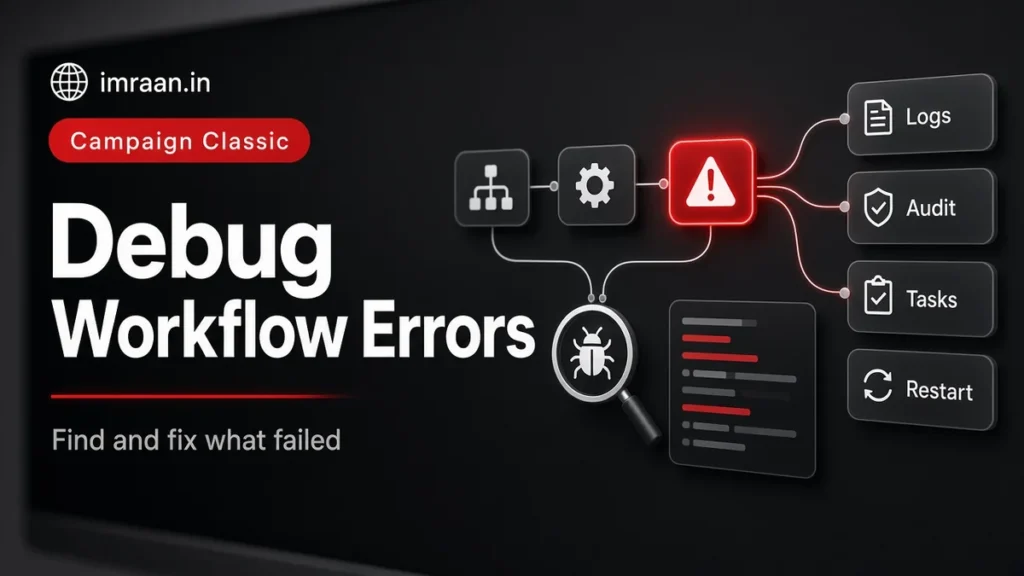
Every Campaign Classic instance has a workflow failing somewhere. The difference between a well-run instance and a messy one is not the number of Adobe Campaign workflow errors, it is how quickly someone notices, understands and fixes them without making things worse.
Here I write about the routine I follow when a workflow goes wrong, grouped by symptom, with the tools the console gives you at each step. I finish with a worked example of a failed nightly import, because that is the workflow most teams call me about.
Four kinds of Adobe Campaign workflow errors
Before touching anything, I decide which kind of problem I am looking at. Each one has a different first step.
- The workflow does not start. It sits in “Start in progress” or “Start as soon as possible”. Usually a server module or a technical workflow problem, not your workflow.
- An activity fails. The workflow pauses, the activity flashes red and supervisors get an email. Usually a configuration, data or permission problem in that activity.
- The workflow finishes but the result is wrong. No error, but the counts or the data are not what you expected. Usually a logic problem.
- A technical workflow stops. Tracking, cleanup or operation management stop running, and problems appear elsewhere days later.
The fourth kind is the most dangerous because nothing in your own workflows looks broken.
When a workflow will not start
The workflow execution troubleshooting page covers both states.
Start in progress usually means the workflow module is not running. Check the wfserver module in the Monitoring tab of the home page. On-premise, an administrator can check from the command line:
nlserver pdump
# look for a line like: wfserver@<instance> (pid) - memory
nlserver start wfserver@<instance>   # only if it is missing, on-premise
On hosted instances, raise it with Adobe Customer Care rather than restarting anything.
Start as soon as possible, typically on workflows inside campaigns, has three usual causes:
- The operationMgt technical workflow is not running. Restart it, then right-click its Scheduler and use Execute pending task(s) now to check it does not fail again.
- The wfserver module is down, as above.
- Too many campaign processes are running, above the NmsOperation_LimitConcurrency threshold. Stop workflows that should not be running and clean up failed deliveries. Adobe advises against raising the threshold yourself.
When an activity fails: reading the journal
When an activity fails, the workflow pauses and the activity shows in red. I resist the urge to click Start immediately. Starting again without understanding the cause usually fails in the same place, and on some activities it can process data twice.
The journal is the first place to look. The workflow monitoring documentation describes the three views I use:
- The Tracking tab in the workflow detail shows all messages.
- Display the tasks and the log on the toolbar shows Log and Tasks tabs under the diagram. Click an activity to filter both to that activity.
- Double-click a task to see its details, including the full error.
The error message is usually precise: an SQL error naming a column, a JavaScript exception with a line number, a file that could not be found, an access right that is missing. Read the whole message, not the first line. The useful part is often at the end.
Common causes behind Adobe Campaign workflow errors
Most failed activities I have debugged come down to one of these:
- Query errors. A filter refers to a field that was renamed, or compares values of different types. The error names the expression.
- Missing files. A File collector or Data loading activity finds no file, or the file has a different name. Check the agreed naming and whether the source system delivered.
- Format changes. A source file gains a column, changes a date format or switches separator. Data loading rejects lines or fails outright.
- Duplicate keys. An Update data activity tries to insert a record that already exists because the reconciliation key is wrong or the input has duplicates. I cover the fix in my post on deduplication workflows.
- JavaScript exceptions. A script reads a variable that was never set, or a value is null. The log shows the line. My JavaScript activity post covers defensive patterns.
- Rights. The workflow runs under an operator who lost access to a folder or a schema.
Tools that make Adobe Campaign workflow errors visible
Three settings help when the journal is not enough. All three are for diagnosis, and I switch them off afterwards.
Log SQL queries in the journal. In the workflow properties, this writes the generated SQL to the log. When a query returns the wrong count, the SQL shows exactly what Campaign asked the database. It is the fastest way to spot a join or condition that does not mean what you thought.
Keep interim results. In a test environment, keeping interim results lets you right-click a transition and look at the population that passed through it. Never leave it on in production, because it keeps worktables that would otherwise be dropped and fills the database.
Log messages from scripts. A logInfo() line in an activity’s initialisation script, writing the values of key variables, often explains a wrong branch:
logInfo("Import file: " + vars.filename + ", rows: " + vars.recCount);
Restarting correctly after Campaign workflow errors
How you restart matters as much as the fix. The monitoring documentation explains the behaviour:
- Start on a paused workflow resumes where it stopped and re-executes the failed activity. Activities already executed are not run again.
- Restart re-executes the whole workflow from the beginning.
- Changes to activities that already ran are not taken into account when you resume. Changes to a paused activity may not be taken into account correctly.
My rule: if I changed an activity’s configuration, I restart the workflow completely, unless that would repeat something irreversible such as a delivery or an export to another system. In that case, I fix the configuration, then work out with the business which records still need processing.
Also note that the journal is not purged on restart. Purge the history if you want a clean log for the next run.
Wrong results without errors
A workflow that completes with the wrong data is harder, because nothing points at the problem. My routine:
- Compare the counts on each transition with the last good run.
- Find the first transition where the count looks wrong.
- Turn on SQL logging, run it in a test environment and read the query for the activity before that transition.
- Check the input data for that run, not the logic only. Often the logic is fine and the data changed.
Most “wrong result” problems I have found were a filter on a date variable that was not set, so the condition compared against nothing.
Technical workflows: the quiet failures
Technical workflows such as tracking, cleanup and operation management keep the instance healthy. When one stops, nothing fails immediately. Tracking stops updating, the database grows or campaigns stop starting.
The technical workflow monitoring page recommends regular checks. I build a simple daily routine: a filter on the workflow list showing technical workflows that are paused, stopped or failed, reviewed every morning. Supervisors should include a shared mailbox, because notifications only go to operators in the supervision group who have an email address on their profile.
For business workflows, the same idea can be automated. Adobe’s workflow supervision use case builds a monitoring workflow that checks a set of workflows for the paused, stopped and error states with a short script, and emails a supervisor when it finds one. I set one up on every instance I look after, scoped to the workflows that feed sends. It catches the cases where a notification went to someone on holiday, and it gives the team one daily message to act on instead of a scattered set of alerts.
Worked example: a nightly import that failed
The hypothetical brief: a nightly workflow imports customer updates from the CRM file drop. This morning the supervisor email says it failed. Marketing has a send at noon that depends on it.
My routine:
- Classify. It started and an activity is red, so this is kind 2: a failed activity.
- Journal. The Log tab, filtered on the red activity, shows the Update data activity failed on a duplicate key on the CRM ID.
- Data. The input file for last night has twice the usual lines. Opening it shows the source system sent each record twice.
- Decision. The workflow is not at fault, but it should have protected itself. For today, I add a deduplication on the CRM ID before the Update data activity in a test copy, check the counts, then apply the same change to production.
- Restart. Because I changed the workflow’s configuration and the import is safe to re-run, I restart the whole workflow and watch each transition count.
- Follow-up. I tell the CRM team about the duplicate export, add a volume check that alerts when the file is more than twice its usual size, and note the incident in the workflow’s description.
The noon send goes out on time, and the next time the source doubles a file, the workflow handles it.
Mistakes I see when teams debug Adobe Campaign workflow errors
- Clicking Start before reading the error. The same failure, sometimes with side effects.
- Fixing production directly. Test the fix on a copy first, even under time pressure, unless the fix is trivial.
- Leaving diagnostic settings on. SQL logging and kept results cost space and performance.
- Nobody watching technical workflows.
Frequently asked questions
Why did nobody get the error email?
Notifications go to operators in the workflow’s supervision group, and only if their profile has an email address. Check both, and add a shared mailbox.
Should I set workflows to ignore errors?
Only for periodic workflows where a failed run can safely be skipped and retried next time. For imports and sends, I want the workflow to stop.
What is the difference between Start and Restart?
Start resumes a paused workflow at the failed activity. Restart runs it from the beginning. After a configuration change, a full restart is safer, if repeating the earlier activities is harmless.
How do I stop the same workflow from running twice at once?
Use an instance variable as a flag at the start of the workflow and clear it at the end, as Adobe’s monitoring documentation shows. Then a scheduler that fires again while a long run is in progress skips the extra run.
I find that most workflow errors are predictable once you have seen a few. A routine and a habit of reading the full message are what make them quick to fix. My workflow best practices are about preventing the same errors in the first place.
Last updated on 26 October 2026
Related articles
Adobe Campaign Classic Operator Roles and Permissions: Access Control Explained
Set up Adobe Campaign operator permissions properly: operators, groups, named rights, folder access and a worked team design.
How to Integrate Adobe Campaign Classic with External CRMs and Legacy Systems
How to integrate Adobe Campaign Classic with CRMs and legacy systems: CRM connectors, FDA, file exchange and SOAP,…
How to Integrate Adobe Campaign Classic with Adobe Experience Cloud
How I plan Adobe Campaign Experience Cloud integrations: Analytics, Target, Assets, shared audiences and Triggers, and what each…