Adobe Campaign Classic Workflow Tutorial: Building Targeting and Delivery Flows
Build an Adobe Campaign Classic workflow from query to delivery: exclusions, a control group, list update and a delivery, explained step by step.

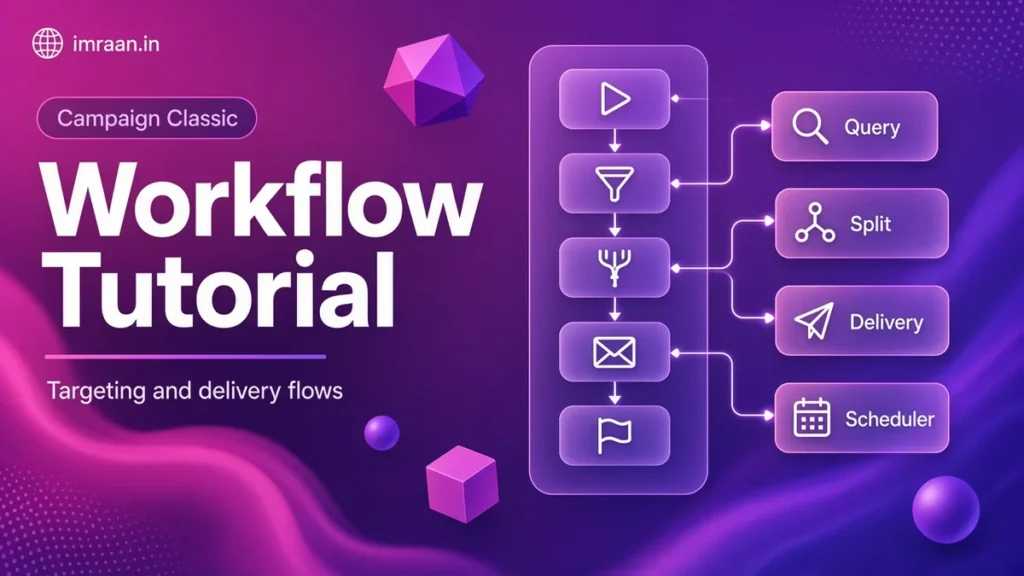
The Adobe Campaign Classic workflow is where most of the real work happens. Deliveries get the attention, but the workflow decides who receives them, who is held out, and what gets recorded for reporting afterwards. If you can read and build a targeting workflow confidently, you can handle most day-to-day campaign requests.
Here I build one workflow from start to finish. I keep it deliberately close to what a marketing team actually asks for, with a control group and an exclusion list, because a tutorial with a single query and a single delivery does not prepare you for real briefs.
The brief for this Adobe Campaign Classic workflow
Here is the request we will work from. It is hypothetical, but every part of it is something I have been asked for many times.
An outdoor clothing retailer is running a spring sale. Marketing wants to email everyone subscribed to the newsletter service who has been in the database for at least 30 days. Customer service keeps a list of people who complained recently, and they must not receive the email. Analytics wants a random 10 percent held back as a control group and saved, so they can compare purchase rates after the sale. The email itself already exists as a delivery template. Nothing goes out until the campaign manager has checked the delivery analysis.
That gives us an Adobe Campaign Classic workflow with six steps: target, exclude, split, record the control group, deliver, and review.
Where an Adobe Campaign Classic workflow lives
Campaign Classic v7 has three places where you will meet workflows, and they behave slightly differently:
- Campaign workflows sit inside a campaign, on the Targeting and workflows tab. They are tied to the campaign’s deliveries, budget and approvals. Use them when the Campaign module is part of your package.
- Targeting workflows sit under Profiles and Targets > Jobs > Targeting workflows. They are standalone and useful for list building, data updates and one-off deliveries.
- Technical workflows sit under Administration > Production > Technical workflows. Adobe ships most of these (database cleanup, tracking, billing), and you add your own for imports and exports.
The activities are the same in all three. The Adobe workflow overview describes each type. For this tutorial I use a campaign workflow, but a targeting workflow works exactly the same way.
How data moves through a Campaign Classic workflow
Before adding activities, it helps to understand what actually travels along the arrows.
Each targeting activity, such as a Query, writes its result into a temporary table in the database called a worktable. The worktable holds the IDs of the selected records plus any extra columns you add. The arrow leaving the activity is a transition, and it carries a reference to that worktable to the next activity, along with a record count.
That is why the count shown on each transition after a run is so useful. It is the size of the population at that point. Right-click a transition and choose Display the target to see the actual records.
By default Campaign drops worktables once they have been used. While you are building and testing, open the workflow Properties and tick Keep the result of interim populations between two executions. You can then inspect every transition after the run. Switch it off before the workflow goes into regular use, because those tables take space. The page on using workflow data explains the options.
Step 1: Query the newsletter subscribers
Drag a Query activity from the Targeting tab onto the canvas and connect it to the Start activity. Open it and set:
- Targeting dimension: Recipients (
nms:recipient). - Filtering dimension: Recipients.
- Label: Newsletter subscribers 30 days plus.
Click Edit query and build two conditions:
- On the Subscriptions collection, choose an “exists” condition, and inside it add
Information service(internal name) equalsnewsletter. - Creation date is before 30 days ago.
If you ever need the same filter in a script, here is the queryDef equivalent. It is a handy way to check a count from a JavaScript activity without running the whole workflow:
var q = xtk.queryDef.create(
<queryDef schema="nms:recipient" operation="count">
<where>
<condition expr="subscription" setOperator="EXISTS">
<condition expr="[service/@name] = 'newsletter'"/>
</condition>
<condition expr="@created < SubDays(GetDate(), 30)"/>
</where>
</queryDef>
);
logInfo("Subscribers older than 30 days: " + q.ExecuteQuery().@count);
You do not need a condition on blacklisted or quarantined addresses here. The delivery excludes those itself during analysis, and it records each exclusion with a reason, which is better for reporting than filtering them out silently in the query.
Step 2: Read the complaint list
Customer service maintains a recipient list called “Recent complaints” under Profiles and Targets > Lists. Add a Read list activity and connect it to the Start activity as a second branch. Choose Explicit and select the list.
The two branches now run in parallel. That is normal: the next activity waits until both of its inbound transitions have arrived.
Step 3: Exclude the complainers
Add an Exclusion activity and connect both the Query and the Read list to it. In the settings:
- Set the main set to the newsletter query. This is the population you keep.
- Add an exclusion and choose the Read list activity as the set to remove.
Because both inbound populations are recipients, the exclusion works directly on recipient IDs and no join configuration is needed. If you are excluding a file of email addresses rather than recipients, you would need to configure a join on the email field. The Exclusion activity page shows that variant.
Leave Generate complement unticked. Nobody needs to work with the excluded people in this workflow.
Step 4: Split off a 10 percent control group
Add a Split activity after the exclusion. On the Subsets tab:
- Rename the first subset to Control. Tick Limit the selected records, click Edit, choose Activate random sampling, then Size (in %) and enter 10.
- Click Add to create a second subset, and rename it Send. Leave it with no filter and no limit.
With overlapping turned off, which is the default, subsets are filled in tab order. Control takes its random 10 percent first, and Send receives everything left over. That gives you two clean, non-overlapping groups. The Split activity page covers the other limit modes if you ever need a fixed number instead of a percentage.
Each subset gets its own outbound transition, so you now have two arrows leaving the split.
Step 5: Store the control group in a list
Analytics need the control group after the workflow is finished, and worktables do not survive that long. Connect the Control transition to a List update activity. Choose Create the list if necessary (Calculated name), pick a folder, and give the list a label that includes the sale name and date, for example “Spring sale control 2018”. The label field accepts dynamic fields, so a recurring version can add the run date automatically.
By default a List update activity has no outbound transition, because saving a population to a list usually ends a branch. That is what we want here, so the Control branch stops at the list.
Step 6: Create and prepare the delivery
Connect the Send transition to an Email delivery activity from the Actions tab. In its settings:
- Delivery: New, created from a template. Pick the spring sale template, built the way I describe in my delivery templates guide.
- Recipients: Specified by inbound event(s).
- Action to execute: Prepare.
“Prepare” runs the full analysis, which calculates the final target, applies typology rules and personalisation, and then stops. Nothing is sent. The campaign manager can open the delivery, review the analysis log and the exclusions, send proofs, and confirm the send manually. That matches the brief’s “nothing goes out until it is checked” rule.
Once you trust the workflow, you can switch the action to Prepare and start, but I keep “Prepare” on anything with a new template or a new audience.
If you tick Generate an outbound transition on the delivery activity, for example to log something after the send, finish that branch with an End activity so the workflow can show as finished.
The finished workflow looks like this:
Start
  |-- Query (newsletter, 30 days plus) --|
  |                                      |-- Exclusion --> Split --+-- Control --> List update
  |-- Read list (recent complaints) -----|                         |
                                                                   +-- Send ----> Email delivery
Step 7: Run and check each step of the Campaign Classic workflow
Start the workflow from the toolbar. Starting is asynchronous, so the status may take a few seconds to change. When it finishes, check:
- The query count. Compare it with a quick count in the query editor. If the two disagree, something in the conditions is not what you think.
- The exclusion count. The output should equal the query count minus the recipients who appear in both the query and the complaint list. Not necessarily minus the whole list, because some complainers may not be newsletter subscribers.
- The split counts. Control should be close to 10 percent of the exclusion output, and Control plus Send should equal it exactly.
- The list. Open Profiles and Targets > Lists and confirm the control list exists with the right count.
- The delivery analysis. Open the delivery and read the analysis log. It shows how many recipients were excluded and why (quarantine, blacklist, duplicates, typology rules).
Right-click any activity and choose Display logs for messages, errors and SQL warnings. The workflow execution monitoring page explains the journal and the task list. If anything fails, my workflow debugging guide goes through the usual causes.
Making the Adobe Campaign Classic workflow reusable
When the spring sale is over, marketing will ask for the same structure for the summer sale. Two options:
- Save as template. From the workflow’s Actions menu, choose Save as template. The next campaign can start from a copy.
- Use variables for the labels. Put the sale name in the workflow’s instance variables at the start, for example in an initialisation script with
instance.vars.saleName = "Spring sale";, and use$(instance/vars/@saleName)in labels and list names. Then only one value changes per campaign.
If the same workflow needs to run on a schedule, replace the link from Start with a Scheduler activity. One warning there: a recurring workflow that creates a new list every run will fill the lists folder quickly. Either reuse one list with a purge option, or add a cleanup step.
Of the two options, I prefer templates for one-off campaigns and variables for anything that repeats on a schedule. A template is easy for marketers to copy without understanding the logic. Variables keep a recurring workflow to one place that changes, but they assume whoever edits it knows where to look, so I always name the initialisation script clearly and note the variables in the workflow description.
Mistakes I see in a first Campaign Classic workflow
- Leaving interim results on in production. It is useful while you build and wasteful afterwards.
- Filtering quarantine and blacklist in the query. The delivery handles both, and it does it with better reporting.
- Hard-coding names in every activity. Labels, list names and delivery names drift apart between campaigns. Variables keep them consistent.
- Starting the delivery directly on the first run. Use Prepare until the counts and content are checked.
- Not saving the control group. Once the worktable is gone, you cannot recreate the same random sample.
FAQ
Why does my Split give slightly different control group sizes each run?
Random sampling depends on the database engine’s random functions, so the result is close to the requested percentage rather than exact. For a large population the difference is small. If analytics needs an exact number, use Maximum size instead of a percentage.
Can I use the same Campaign Classic workflow for SMS?
Yes, swap the email delivery activity for an SMS delivery activity and make sure the query only keeps recipients with a mobile number. The Split, Exclusion and List update parts stay the same.
Should I use a campaign workflow or a targeting workflow?
If the delivery belongs to a marketing campaign with a budget, approvals or reporting by campaign, use the campaign workflow so everything is grouped under the campaign. For data jobs and one-off list building, a targeting workflow is simpler.
Why is the delivery count lower than the Send count?
Because the delivery analysis removes recipients in quarantine, on the blacklist, with invalid addresses, duplicates, and anyone excluded by typology rules. The analysis log and the exclusions tab of the delivery list each reason.
The next thing worth learning in depth is the Query activity itself, because it is the first step of almost every workflow you will build. My Query activity guide picks up from here.
Last updated on 26 October 2026
Related articles
Adobe Campaign Classic Operator Roles and Permissions: Access Control Explained
Set up Adobe Campaign operator permissions properly: operators, groups, named rights, folder access and a worked team design.
How to Debug Workflow Errors in Adobe Campaign Classic
How I debug Adobe Campaign workflow errors: journals, SQL logging, stuck activities, common messages and a repeatable triage…
How to Integrate Adobe Campaign Classic with External CRMs and Legacy Systems
How to integrate Adobe Campaign Classic with CRMs and legacy systems: CRM connectors, FDA, file exchange and SOAP,…