Adobe Campaign Classic Data Model Explained: nms:recipient and Schema Relationships
The Adobe Campaign Classic data model explained: recipients, folders, deliveries, logs and subscriptions, plus how to query links with EXISTS.

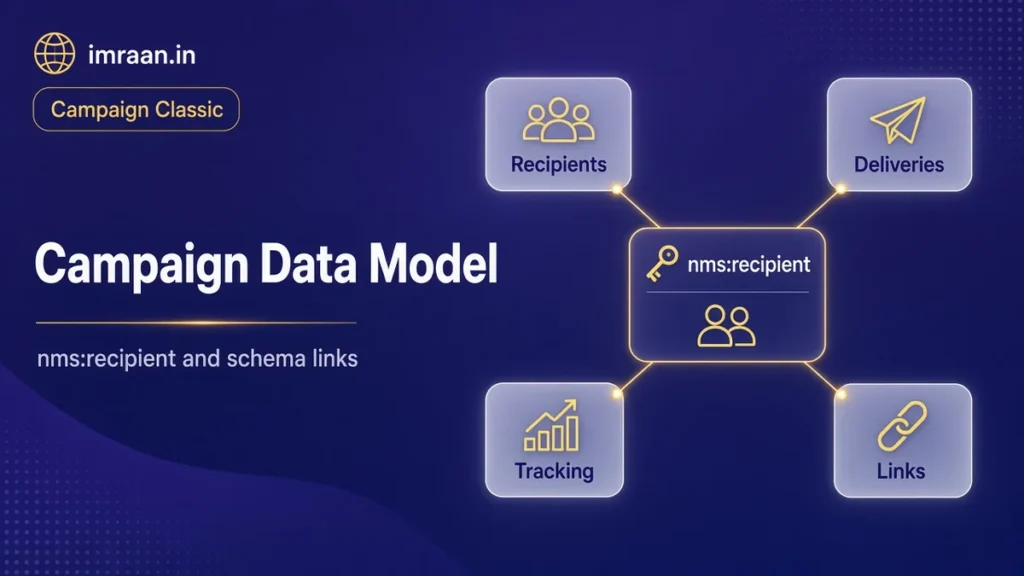
Every project I have worked on eventually comes down to the Adobe Campaign Classic data model. Workflows query it, deliveries personalise from it, reports aggregate it, and most performance problems start in it. If you understand a handful of tables and how they link, the rest of the platform makes much more sense.
Here I walk through the built-in tables you will meet first, the way schemas map to the database, and how to query across links correctly. The data model description in Adobe’s documentation is the reference, and you can also read each table’s documentation from Administration > Configuration > Data schemas by selecting a schema and opening its Documentation tab.
Schemas and tables in the Campaign Classic data model
Campaign does not let you design tables directly in the database. Instead, each table is described by an XML schema, and Campaign creates or updates the database to match. A schema has a namespace and a name, such as nms:recipient. The namespace tells you where it comes from: nms and xtk are Adobe’s, and your own schemas use your own namespace, which I cover in my custom schema guide.
When you work in workflows, queries and scripts, you use the schema names and XPath expressions, not the SQL names. The schema introduction explains the structure. Here is how the main names translate:
| Schema | Database table | What it holds |
|---|---|---|
nms:recipient |
NmsRecipient | Default profiles that receive deliveries |
xtk:folder |
XtkFolder | Every folder in the Explorer tree |
nms:group |
NmsGroup | Static lists of recipients |
nms:service |
NmsService | Information services, such as a newsletter |
nms:subscription |
NmsSubscription | Which recipient subscribes to which service |
nms:delivery |
NmsDelivery | Deliveries and delivery templates |
nms:broadLogRcp |
NmsBroadLogRcp | One line per message sent to a recipient |
nms:trackingLogRcp |
NmsTrackingLogRcp | One line per open or click |
nms:address |
NmsAddress | Quarantined addresses |
Field naming
In the database, column names carry a prefix that tells you the type. In schemas and XPath, however, you use the attribute name without the prefix. For example, the recipient’s email is the sEmail column, and @email in an expression.
| Prefix | Type | Example column | XPath |
|---|---|---|---|
| s | String | sEmail | |
| i | Integer | iBlackList | @blackList |
| d | Double | dAmount | @amount |
| ts | Timestamp | tsCreated | @created |
| m | Memo (long text) | mData | @data |
Foreign keys follow the same rule. A link called folder on the recipient schema is stored in the iFolderId column, and in XPath you can read the key as [@folder-id] or follow the link as [folder/@label].
This matters most when you read SQL logs or talk to a DBA. The workflow journal can show the SQL Campaign generates, and it uses the database names, so knowing both forms saves a lot of guessing.
Recipients and folders in the Campaign data model
nms:recipient is the default profile table. It holds the contact data needed for each channel: email, email format, postal address fields, phone and mobile numbers. It also holds opt-out flags. @blackList is the general opt-out, and there are channel-specific flags such as @blackListEmail.
Every recipient belongs to a folder through the folder link. Folders are typed, so a recipient folder holds recipients only. Note that the folder is not just a way to organise records in the Explorer. Folder permissions decide which operators can see and change which recipients, so where you import records has security consequences.
Some projects replace nms:recipient with their own profile table. That is supported, but it changes a lot downstream, including delivery mapping, logs and forms. For most projects I extend nms:recipient instead.
Groups, services and subscriptions
Campaign has two ways to keep recipients in a set.
Groups (nms:group), shown as lists in the console, are static collections. A recipient can be in many groups, so the relation is stored in a separate table. Workflows use them to save a population for later.
Services (nms:service) are information services that people subscribe to, such as a newsletter. Each subscription is a record in nms:subscription, linking one recipient to one service. When subscriptions change through web forms or the console, the history is kept in nms:subHisto. Services are the right choice for anything the recipient opted into, because they carry that consent and its history with them.
Deliveries and logs in the Adobe Campaign Classic data model
nms:delivery holds each delivery and each delivery template. A delivery holds its target definition, content, properties and status, and links to a folder.
When a delivery is sent, Campaign writes one line per message to the delivery log, nms:broadLogRcp, linking the delivery and the recipient. The line records the status and, for failures, the reason. When a recipient opens or clicks, each event becomes a line in the tracking log, nms:trackingLogRcp, which links back to the delivery log line, the recipient and the URL.
Consequently, these are the largest tables on almost every instance. Adobe’s tables to maintain page lists them, along with quarantine and other tables that grow quickly. I treat them with care:
- Always filter by date and by delivery when querying logs.
- Never add a link from a log table to a custom table without thinking about the join cost.
- Let the cleanup workflow purge old logs. After all, keeping everything forever is not free.
Failed addresses end up in nms:address, the quarantine table. I explain how that works in my post on bounces and quarantine.
Exploring the Campaign Classic data model in the console
In fact, you do not need database access to learn the Adobe Campaign Classic data model. In Administration > Configuration > Data schemas, every built-in and custom schema is listed by namespace. Selecting one shows its definition, and the structure view shows the full tree of fields and links, including fields added by extension schemas from other packages or your own team.
A good exercise for a new developer is to open nms:recipient and follow its links by hand: out to the folder, out to subscriptions and on to the service, out to the delivery logs and on to the delivery. Then open the same links in the workflow query editor, where they appear as nodes you can expand. Once you see that the editor’s tree is just the schema’s links, building queries stops feeling like guesswork.
The query editor also shows link types visually. Collection links, the ones that need EXISTS, appear with a different icon from single links. That icon is worth pointing out to marketers who build their own queries. My Query activity guide shows the same links from the workflow side.
Links and how to query across them
There are two kinds of link you will use constantly.
Many-to-one links point to one record. For instance, a recipient has one folder, and a subscription has one service. You can follow them directly in an XPath, for example [folder/@label].
Collection links, on the other hand, point to many records. For example, a recipient has many subscriptions, many delivery logs and many tracking logs. You cannot filter on a collection with a direct XPath, because the query would return one row per linked record. The data-oriented API documentation explains that filters on collection links must use EXISTS or NOT EXISTS.
The correct form in a queryDef is a condition on the collection with setOperator="EXISTS", and the inner conditions evaluated against the linked table:
<where>
  <condition expr="subscription" setOperator="EXISTS">
    <condition expr="[service/@name] = 'newsletter'"/>
  </condition>
</where>
In the workflow query editor, the same thing is done by choosing the collection link and then Exists such as, and adding conditions on the linked table. Seeing the two side by side helped my team move between workflows and scripts much faster.
Worked example: an engaged newsletter audience
Here is a hypothetical brief. A publisher wants a list of newsletter subscribers who are not opted out of email and who have opened or clicked any message in the last 90 days. For each person, they want the email address, the folder name and the date they subscribed.
The data needed spans four tables: recipients, subscriptions, services and tracking logs. Here is the queryDef I would write to test the logic from a JavaScript activity before building it in a workflow:
var query = xtk.queryDef.create(
  <queryDef schema="nms:recipient" operation="select" lineCount="20">
    <select>
      <node expr="@email"/>
      <node expr="[folder/@label]"/>
    </select>
    <where>
      <condition expr="@blackList = 0"/>
      <condition expr="@blackListEmail = 0"/>
      <condition expr="subscription" setOperator="EXISTS">
        <condition expr="[service/@name] = 'newsletter'"/>
      </condition>
      <condition expr="trackingLog" setOperator="EXISTS">
        <condition expr={"@logDate >= SubDays(GetDate(), 90)"}/>
      </condition>
    </where>
  </queryDef>
);
var res = query.ExecuteQuery();
for each (var r in res.recipient)
  logInfo(r.@email + " / " + r.folder.@label);
A few points about this query.
The two opt-out conditions are on the recipient itself, so they are plain conditions. The subscription and tracking conditions are on collections, so each uses EXISTS. Campaign turns each EXISTS into a correlated sub-query, which returns one row per recipient however many subscriptions or clicks they have.
The lineCount attribute keeps the test small. I remove it once I trust the logic, and in practice I move the query into a Query activity anyway, so marketers can maintain it.
However, the subscription date is not in the select yet. Because a recipient can in theory have several subscriptions, I would add it as a collection in the select, restricted to the newsletter, or, in a workflow, use Add data to pull the subscription’s creation date as a single value. Adding subscription/@created directly to the select would return one row per subscription, which is exactly the cardinal product the documentation warns about.
Best practices for the Campaign Classic data model
Adobe publishes data model best practices, and the ones I come back to most are:
- Extend, do not duplicate. Add fields to
nms:recipientthrough an extension schema rather than building a parallel profile table, unless there is a real reason. - Keep the recipient table lean. Put one-to-many data, such as orders, in its own table linked to the recipient.
- Index the fields you filter on. Especially external IDs used for reconciliation during imports.
- Mind the log tables. They grow fastest, and every join to them is expensive.
If I had to pick the one that matters most, it is keeping the recipient table lean. Every extra column is carried through recipient imports, queries and exports, and a wide recipient table slows down every workflow on the instance, not just the one that needed the field. When someone asks me to add a field, my first question is whether it is one value per person. If it is not, it goes in its own table.
Pitfalls in the Adobe Campaign Classic data model
- Filtering on a collection without EXISTS. It produces duplicates and slow queries. If a count is suspiciously higher than the number of recipients, this is usually why.
- Confusing groups and services. Use services for consent-based subscriptions, groups for working sets.
- Writing SQL names in XPath.
@sEmaildoes not exist. Use@email. - Querying logs without a date filter. Indeed, it can be the slowest query on the instance.
FAQ
Where can I see every field in the Adobe Campaign Classic data model?
Open Administration > Configuration > Data schemas, select the schema, and use the Documentation tab or the Structure tab. The structure view shows fields, types and links, including those added by extensions.
What is the difference between the broadLog and the trackingLog?
The broadLog has one line per message sent, with its delivery status. The trackingLog has one line per tracked event, such as an open or a click, and links back to the broadLog line.
Can I delete a recipient safely?
Deleting removes the profile, and depending on link integrity, related records such as subscriptions and logs. Many teams prefer to opt out or move records to an archive folder instead, so history is kept.
Why are there two schema names for recipient-related logs?
The Rcp suffix in nms:broadLogRcp and nms:trackingLogRcp means the logs are tied to nms:recipient. If you deliver to a different profile table, you use a different set of log schemas mapped to that table.
In the next post, I build a custom schema of my own and link it to recipients, which is the first real extension most projects need.
Last updated on 26 October 2026
Related articles
Adobe Campaign Classic Operator Roles and Permissions: Access Control Explained
Set up Adobe Campaign operator permissions properly: operators, groups, named rights, folder access and a worked team design.
How to Debug Workflow Errors in Adobe Campaign Classic
How I debug Adobe Campaign workflow errors: journals, SQL logging, stuck activities, common messages and a repeatable triage…
How to Integrate Adobe Campaign Classic with External CRMs and Legacy Systems
How to integrate Adobe Campaign Classic with CRMs and legacy systems: CRM connectors, FDA, file exchange and SOAP,…